To give cloud-based Claude or Cursor agents permanent storage, install the Artifacta MCP server and register it in your claude_desktop_config.json (or Cursor's MCP settings). Once connected, your AI coding agent can push, retrieve, and deduplicate files across every session through Model Context Protocol (MCP) tools like store_artifact and list_artifacts.
When you're running Claude or Cursor through the cloud — using Claude.ai, a hosted API agent, or any setup where the agent doesn't have a persistent local filesystem — there's nowhere for generated files to live between sessions. Each conversation starts fresh with no memory of what was produced before. If you've ever watched a cloud agent dutifully regenerate a file it already produced two days ago, you've felt this problem firsthand.
The Artifacta MCP server was designed to fix exactly this — with an artifact store wired in as an MCP server, your agent gains a persistent home for everything it produces. This guide walks through why local file access alone isn't enough, and exactly how to install the Artifacta MCP server in Claude Desktop or Cursor so your agent can push and retrieve files across every future session.
Why Cloud Claude and Cursor Agents Forget Their Files
When Claude or Cursor writes output — a generated module, a test fixture, a data file — it writes to the local filesystem at whatever path the conversation happened to be scoped to. That's fine in the moment. The problems start later, and they all trace back to one thing: an AI agent with no durable memory of its own work.
- No cross-session retrieval. Start a new conversation and the agent has no idea the file exists unless you explicitly paste the path back in. There's no index, no search, no way to say "pull the component you generated last Thursday."
- Silent overwrites. Every regeneration either overwrites the existing file or creates a new one with no record of what came before. Two runs producing
report.pdfleaves you with one file and no version history. - No deduplication. Agents generate the same boilerplate repeatedly across projects. Without content-hash deduplication, you get dozens of near-identical files spread across directories with no signal about which one is canonical.
- No agent-to-agent handoff. If you run a planning agent and then a coding agent, the coding agent doesn't know what the planner produced unless you manually copy artifacts between sessions.
An MCP server solves all of this by giving agents a structured, queryable artifact store — not just a raw filesystem.
What the Artifacta MCP Server Gives Your AI Agent
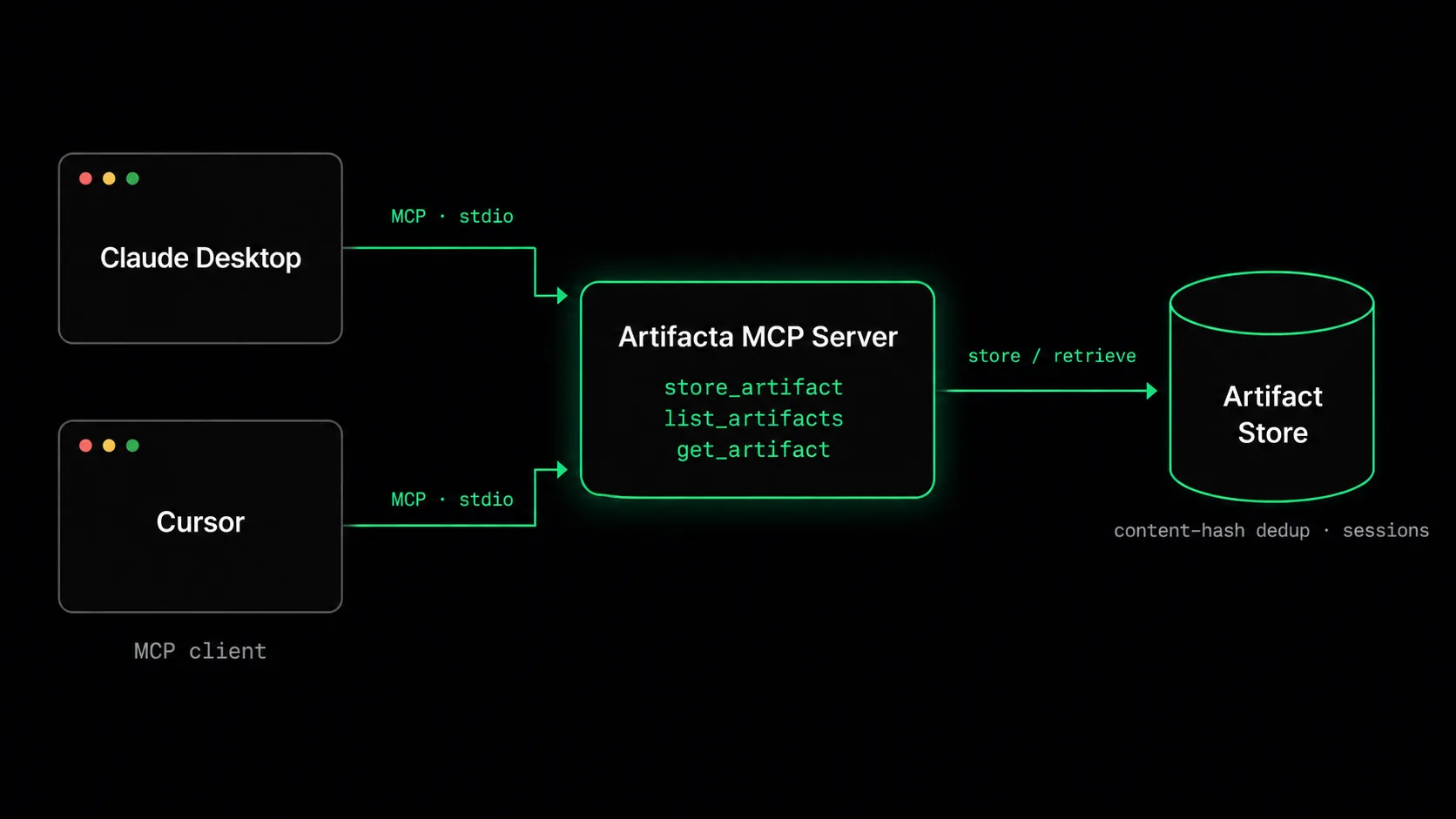
Model Context Protocol (MCP) lets you expose tools and resources to Claude Code, Claude Desktop, and Cursor through a local server process that communicates over stdio transport. When your editor or terminal launches, the MCP server starts alongside it, and the model gains new callable tools beyond its built-in set.
Wiring Artifacta in as an MCP server means your agent gets a set of tool-calling endpoints for durable storage:
store_artifact— push any file or text blob into the store, tagged with metadatalist_artifacts— query by session, agent ID, content type, or metadata filterget_artifact— retrieve a specific artifact by IDget_artifact_download_url— get a time-limited link for a stored blobcreate_session/seal_session— group a run's outputs under one session
The model doesn't need to know where the content-addressable store lives. It calls these tools the same way it calls any other MCP tool — the server handles authentication, content-hashing, and deduplication automatically.
Prerequisites
Before you install the Artifacta MCP server, make sure you have:
- Node.js 18+ (for the MCP server process)
- An Artifacta account and API key — get one free at artifacta.io
- Claude Desktop or Cursor (or both — you can connect multiple MCP clients to the same store)
# Verify node version
node --version  # should be 18+
How to Install the Artifacta MCP Server in Claude Desktop
Step 1: Install the MCP Package
npm install -g @artifacta/mcpVerify the install:
artifacta-mcp --versionStep 2: Locate Your Claude Desktop Config File
On macOS:
open ~/Library/Application\ Support/Claude/On Windows:
%APPDATA%\Claude\You're looking for claude_desktop_config.json. If it doesn't exist yet, create it.
Step 3: Add the Artifacta MCP Server Block
Open claude_desktop_config.json and add the following under the mcpServers key:
{
  "mcpServers": {
    "artifacta": {
      "command": "artifacta-mcp",
      "args": ["--stdio"],
      "env": {
        "ARTIFACTA_API_KEY": "ak_live_your_key_here",
        "ARTIFACTA_API_URL": "https://api.artifacta.io"
      }
    }
  }
}
Replace ak_live_your_key_here with your actual API key from the Artifacta dashboard.
Step 4: Restart Claude Desktop
Close and reopen Claude Desktop. On next launch, Claude will start the MCP server process alongside itself. You can verify it connected by asking Claude: "What MCP tools do you have available?" — you should see store_artifact, list_artifacts, and the rest in the response.
How to Install the Artifacta MCP Server in Cursor
Step 1: Open Cursor Settings
Press Cmd+Shift+P (Mac) or Ctrl+Shift+P (Windows/Linux), then search for "Open User Settings (JSON)".
Step 2: Add the MCP Server Configuration
Cursor uses the same MCP config format as Claude Desktop. Add a top-level mcpServers key if it doesn't exist:
{
  "mcpServers": {
    "artifacta": {
      "command": "artifacta-mcp",
      "args": ["--stdio"],
      "env": {
        "ARTIFACTA_API_KEY": "ak_live_your_key_here",
        "ARTIFACTA_API_URL": "https://api.artifacta.io"
      }
    }
  }
}
Step 3: Reload the Cursor Window
Press Cmd+Shift+P → "Developer: Reload Window". The Artifacta MCP server will start, and Cursor's Composer agent will have access to the storage tools on its next turn.
Using Artifacta MCP: A Real Agent Workflow
Here's what a typical AI agent session looks like once the MCP server is connected.
Push a Generated File to the Store
You ask Claude Code to generate a TypeScript utility module. After it writes the file locally, prompt it to also push to the store:
"Now store that utility in Artifacta. Tag it with
type=utility,language=typescript, andproject=auth-service."
Claude calls store_artifact with the file content and metadata. The store content-hashes the blob — if you've uploaded identical content before, it deduplicates automatically and returns the existing artifact ID.
The agent responds with something like:
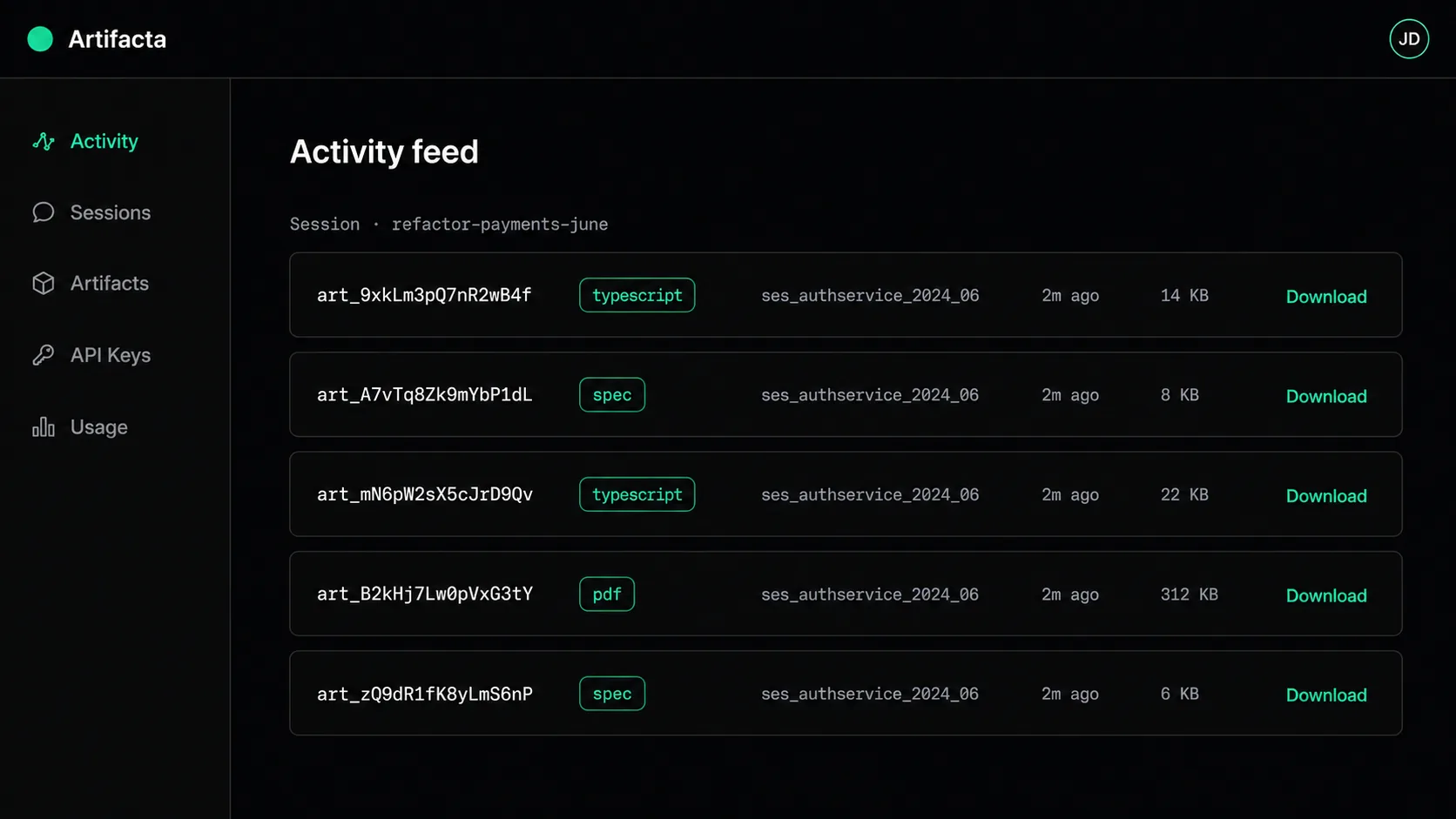
Stored as artifact art_9xkLm3pQ7nR2wB4f. Session: ses_authservice_2024_06.Retrieve Artifacts in a Future Session
Two weeks later, starting a new conversation:
"Pull the TypeScript utilities you stored for auth-service."
Claude calls list_artifacts with metadata.project=auth-service and metadata.type=utility, gets back the paginated list, then calls get_artifact on the ones you want. No file paths, no digging through directories — the artifact store is fully queryable.
Hand Off Work Between AI Agents
Run a planning agent that produces a spec document, stored in Artifacta with type=spec. Your coding agent in the next session can:
"List the latest specs in Artifacta for the billing module and use them as context."
One list_artifacts call gives it exactly what the planner produced, enabling clean agent-to-agent handoff without any manual copy-paste between sessions.
Session Grouping: Organize Multi-Step Agent Runs
Artifacta supports the concept of sessions — a logical container for everything an agent produces in one run. This is especially useful when you're running multi-agent pipelines or long, multi-step tasks.
At the start of a long task, prompt the agent to create a session:
"Create an Artifacta session called
refactor-payments-junebefore you start. Store all outputs in it."
At the end:
"Seal the session."
Sealing marks the session as complete and makes it easy to pull all outputs from that specific run later — either in the web dashboard or via list_artifacts filtered by session ID.
Environment Variable Shortcuts for the MCP Server
Rather than hardcoding session names and IDs in every prompt, you can pre-configure them as environment variables in your MCP server block:
{
  "mcpServers": {
    "artifacta": {
      "command": "artifacta-mcp",
      "args": ["--stdio"],
      "env": {
        "ARTIFACTA_API_KEY": "ak_live_your_key_here",
        "ARTIFACTA_API_URL": "https://api.artifacta.io",
        "ARTIFACTA_SESSION_ID": "ses_my_project_session",
        "ARTIFACTA_AGENT_ID": "cursor-main"
      }
    }
  }
}
With ARTIFACTA_SESSION_ID set, the agent will associate every store_artifact call with that session automatically, without needing to be told.
What the Artifacta Dashboard Shows You
Once you've pushed a few artifacts, visit app.artifacta.io. The dashboard gives you:
- A chronological activity feed of everything your agents have stored
- Per-session views — every output from a single run in one place
- Content preview for text blobs and code files
- Shareable download links with configurable TTLs
- Storage and artifact-count usage against your plan limits
This is also where you manage API keys, rotate credentials, and set up team access if you're building with multiple agents across a shared workspace.
Troubleshooting the Artifacta MCP Server
Claude doesn't show Artifacta tools after restart.
Check that artifacta-mcp is on your PATH: which artifacta-mcp. If it's not found, try npx @artifacta/mcp --stdio as the command instead of the bare binary.
store_artifact returns unauthorized.
Double-check that the API key in your config starts with ak_live_ and matches exactly what's in your Artifacta dashboard. Keys are shown once on creation.
Artifacts stored but not appearing in the dashboard.
The dashboard refreshes on load. Hard-reload the page (Cmd+Shift+R). If still missing, check that ARTIFACTA_API_URL points to https://api.artifacta.io — not a localhost address left over from development.
From Session Memory to Durable Agent Memory
Local filesystem access is enough to get an agent working. It is not enough to preserve its work across sessions, machines, or environments. With the Artifacta MCP server, your coding agent can push what it creates, retrieve artifacts from previous runs, and hand work off cleanly to the next agent or session. Instead of starting from scratch each time, it builds on durable, content-addressable outputs that already exist — turning short-term session memory into persistent agent memory. If you're deciding between this, Claude's own chat-native Artifacts, or building your own S3 wrapper, see how Artifacta compares to Claude Artifacts and a DIY S3 wrapper.
Artifacta is an artifact store built for AI agents. The MCP server is available to use with a free tier — get started at artifacta.io.